
Marketing materials & setup guides
Meet LoanWick.
Share it with your team.
A quick overview to pass along, a presentation to walk through together, and clear guides for getting started with Bonzo.
The LoanWick presentation
Ten slides covering the workflow, officer and admin controls, model choices and setup. Use the arrows, or open “Read slide text” below each slide.
1. AI follow-up for
Read slide text
AI follow-up for
mortgage teams
Connected to Bonzo. Configured around your team.
Formerly BrokerBot
2. Follow-up inside your Bonzo workflow
Read slide text
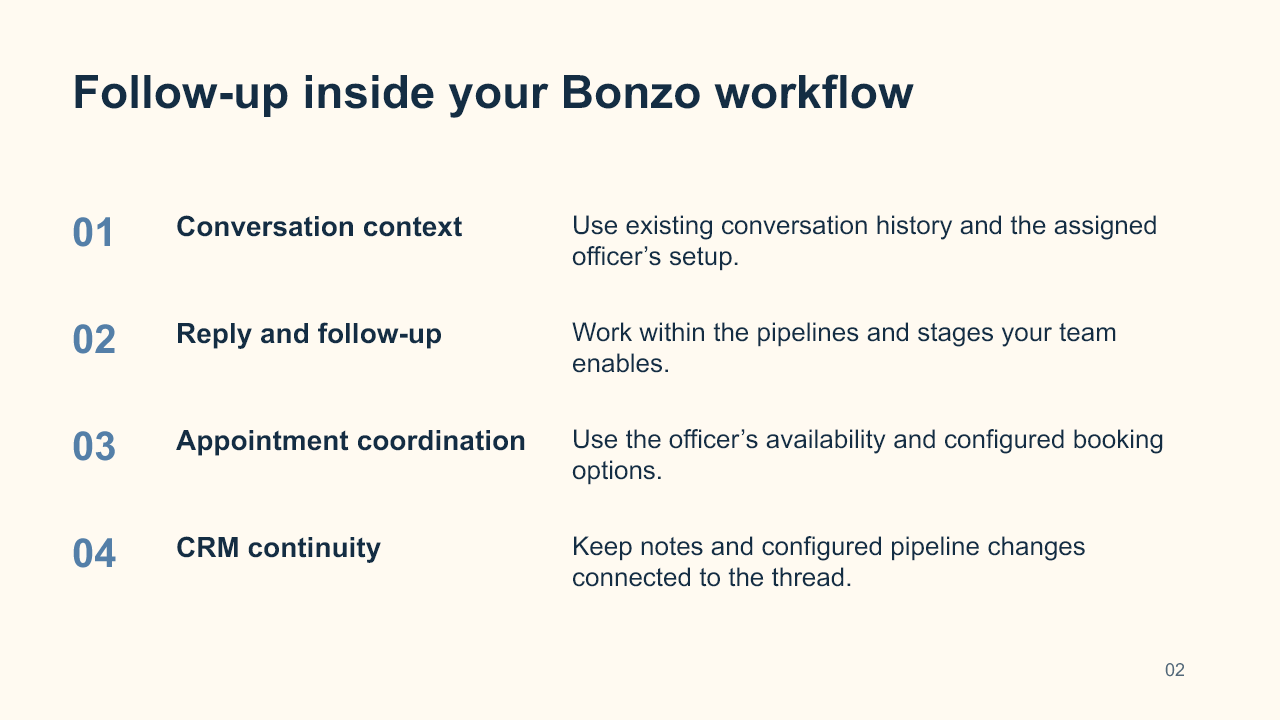
Follow-up inside your Bonzo workflow
Conversation context
Use existing conversation history and the assigned officer’s setup.
Reply and follow-up
Work within the pipelines and stages your team enables.
Appointment coordination
Use the officer’s availability and configured booking options.
CRM continuity
Keep notes and configured pipeline changes connected to the thread.
3. A conversation with room to answer
Read slide text
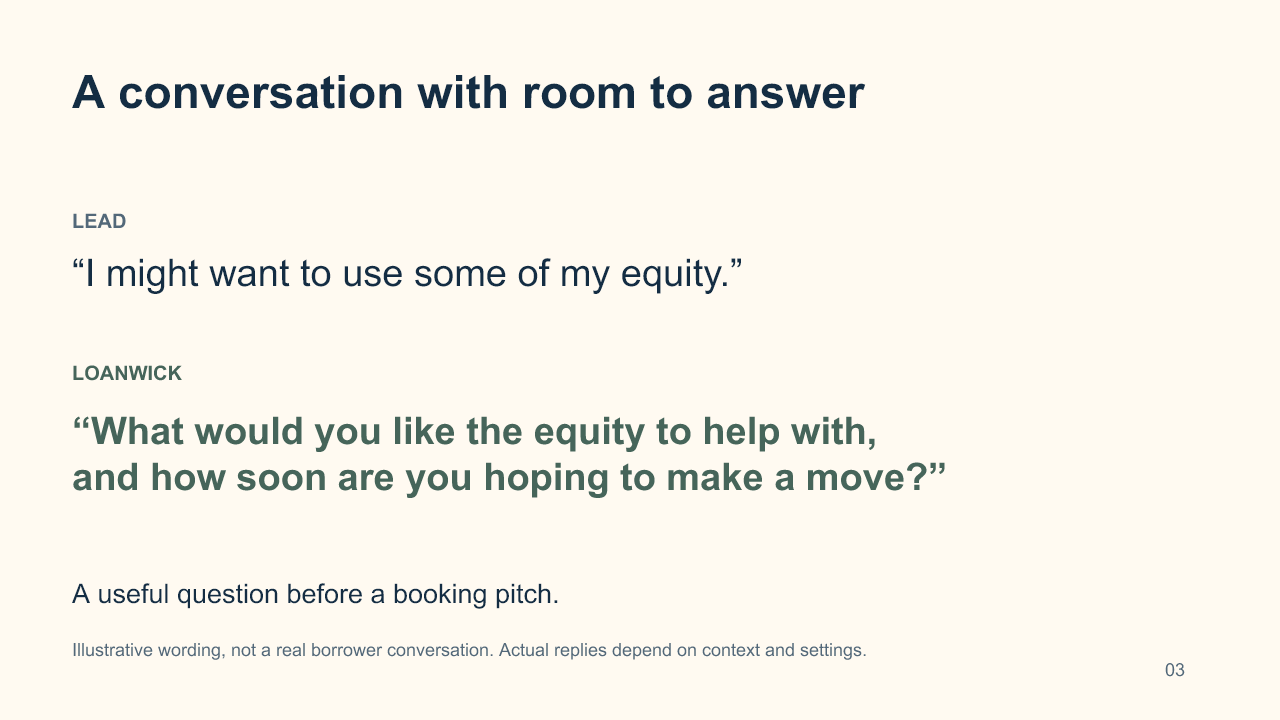
A conversation with room to answer
LEAD
“I might want to use some of my equity.”
LOANWICK
“What would you like the equity to help with,
and how soon are you hoping to make a move?”
A useful question before a booking pitch.
Illustrative wording, not a real borrower conversation. Actual replies depend on context and settings.
4. Your assistant, your way of working
Read slide text
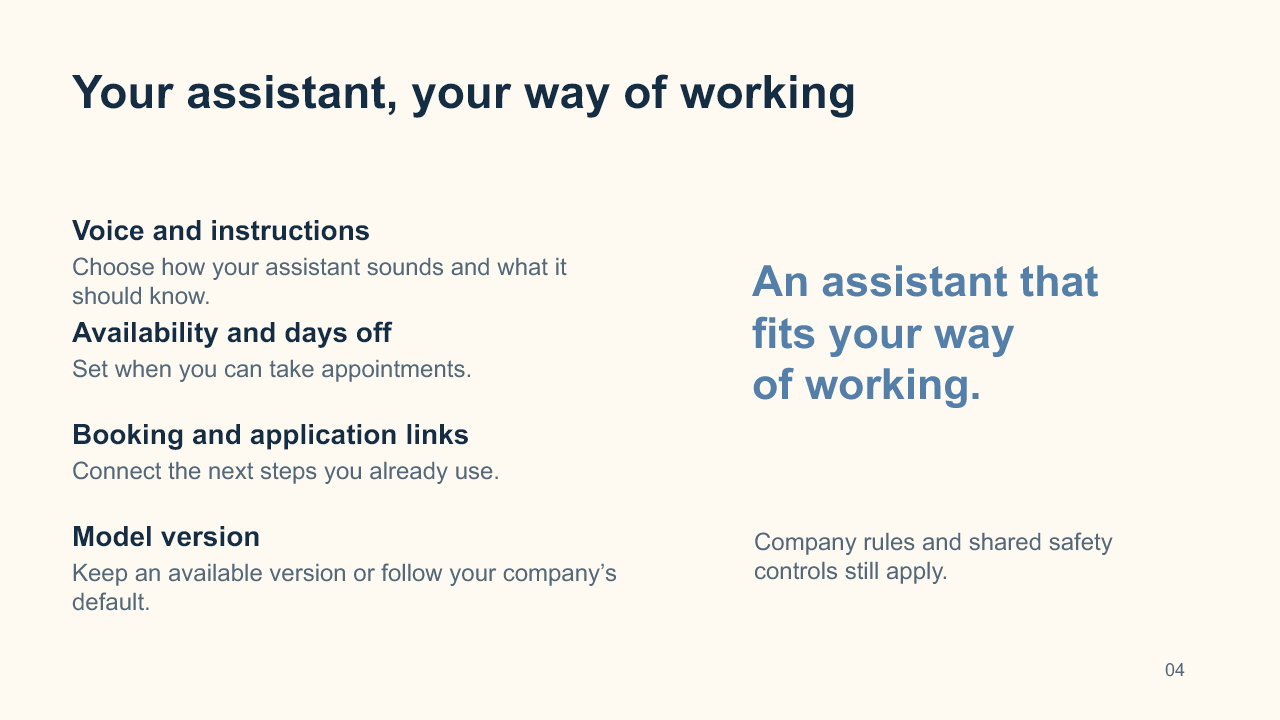
Your assistant, your way of working
Voice and instructions
Choose how your assistant sounds and what it should know.
Availability and days off
Set when you can take appointments.
Booking and application links
Connect the next steps you already use.
Model version
Keep an available version or follow your company’s default.
An assistant that
fits your way
of working.
Company rules and shared safety controls still apply.
5. Company control with officer flexibility
Read slide text
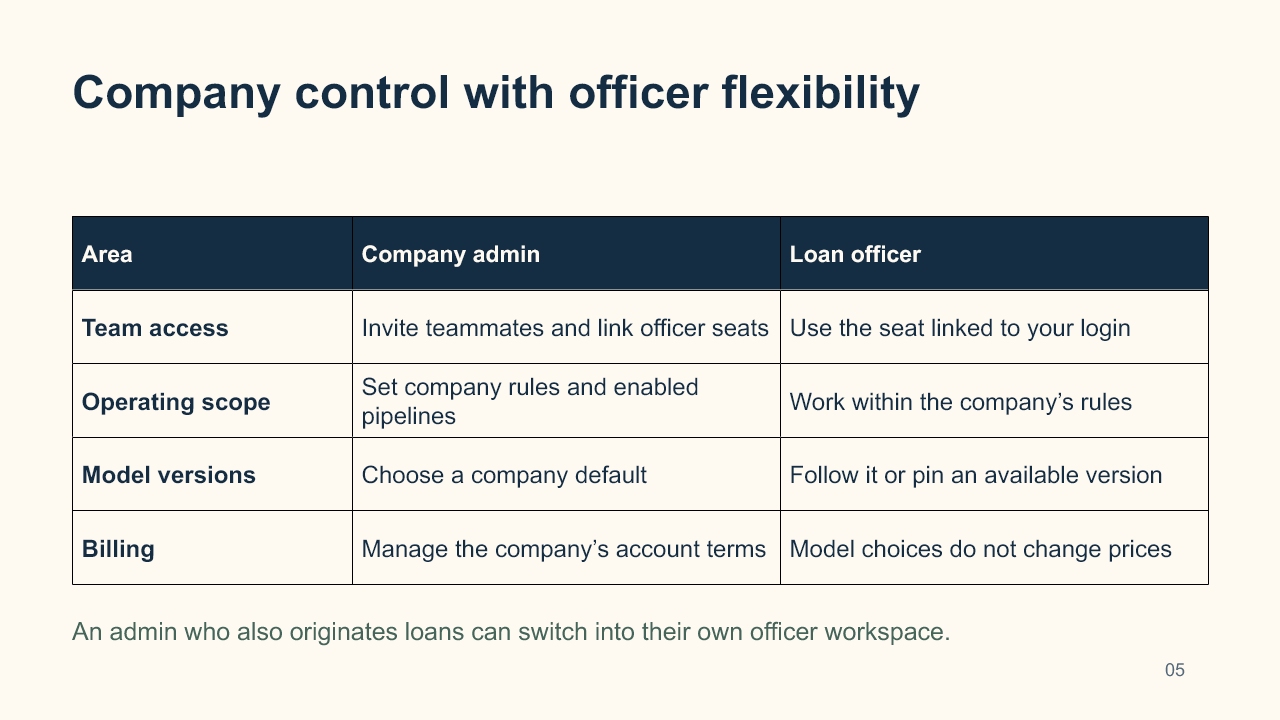
Company control with officer flexibility
Area
Company admin
Loan officer
Team access
Invite teammates and link officer seats
Use the seat linked to your login
Operating scope
Set company rules and enabled pipelines
Work within the company’s rules
Model versions
Choose a company default
Follow it or pin an available version
Billing
Manage the company’s account terms
Model choices do not change prices
An admin who also originates loans can switch into their own officer workspace.
6. New versions without a forced switch
Read slide text
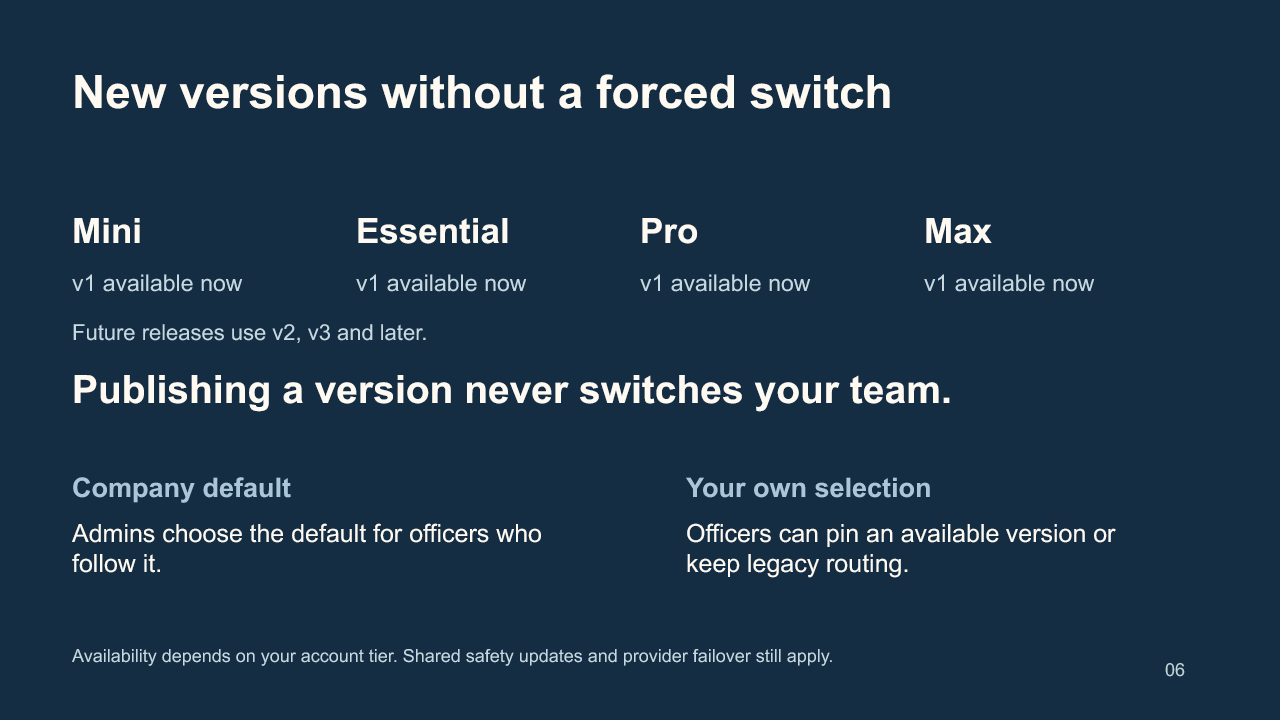
New versions without a forced switch
Mini
v1 available now
Essential
v1 available now
Pro
v1 available now
Max
v1 available now
Future releases use v2, v3 and later.
Publishing a version never switches your team.
Company default
Admins choose the default for officers who follow it.
Your own selection
Officers can pin an available version or keep legacy routing.
Availability depends on your account tier. Shared safety updates and provider failover still apply.
7. Setup before outreach
Read slide text
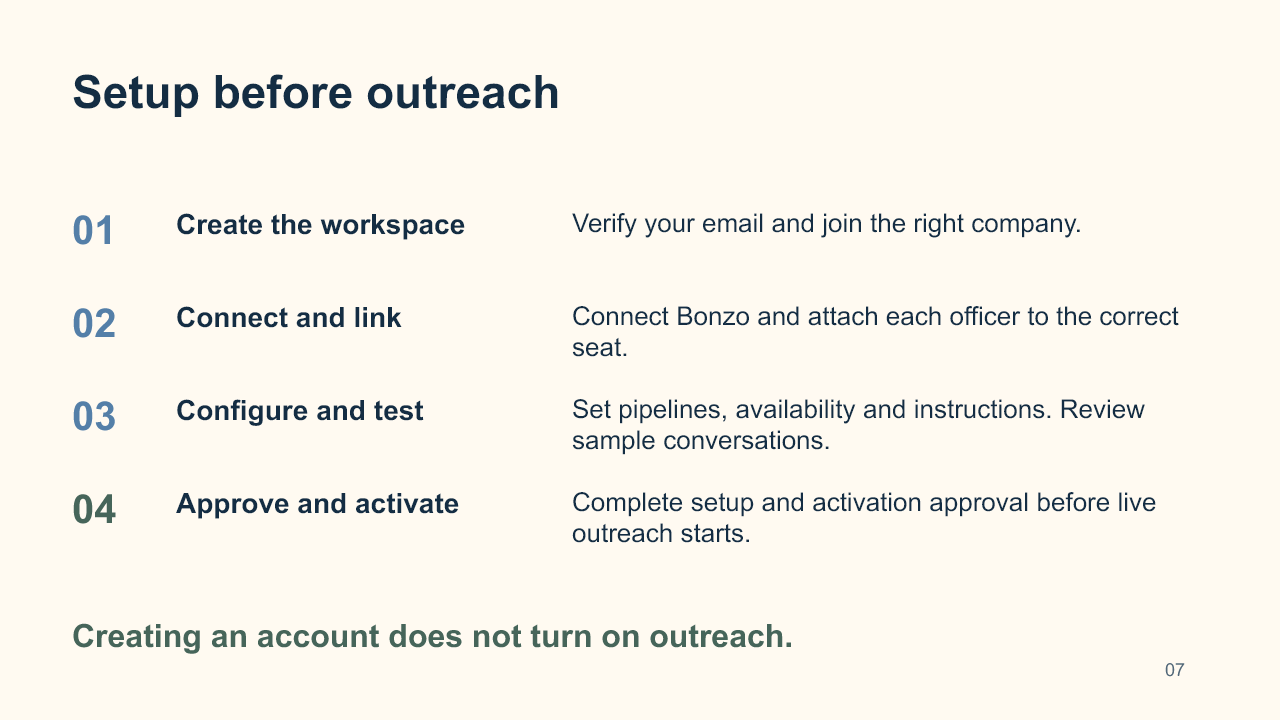
Setup before outreach
Create the workspace
Verify your email and join the right company.
Connect and link
Connect Bonzo and attach each officer to the correct seat.
Configure and test
Set pipelines, availability and instructions. Review sample conversations.
Approve and activate
Complete setup and activation approval before live outreach starts.
Creating an account does not turn on outreach.
8. A pilot your team can evaluate
Read slide text
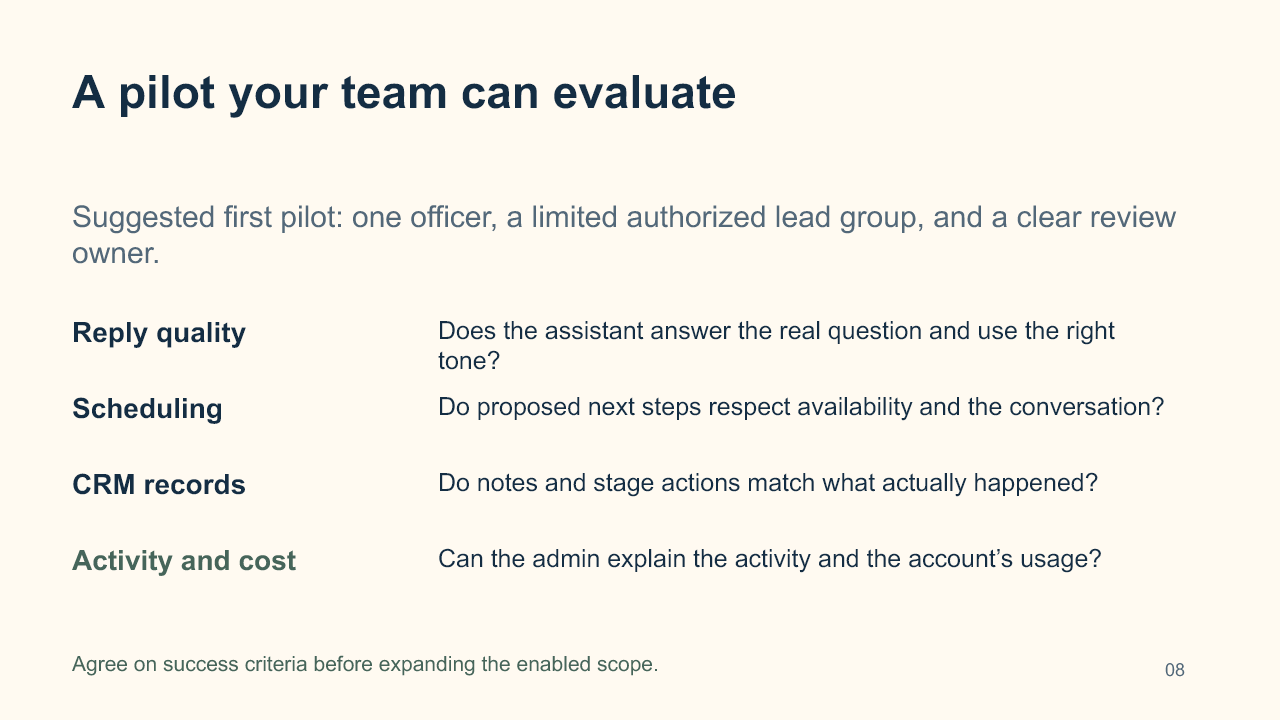
A pilot your team can evaluate
Suggested first pilot: one officer, a limited authorized lead group, and a clear review owner.
Reply quality
Does the assistant answer the real question and use the right tone?
Scheduling
Do proposed next steps respect availability and the conversation?
CRM records
Do notes and stage actions match what actually happened?
Activity and cost
Can the admin explain the activity and the account’s usage?
Agree on success criteria before expanding the enabled scope.
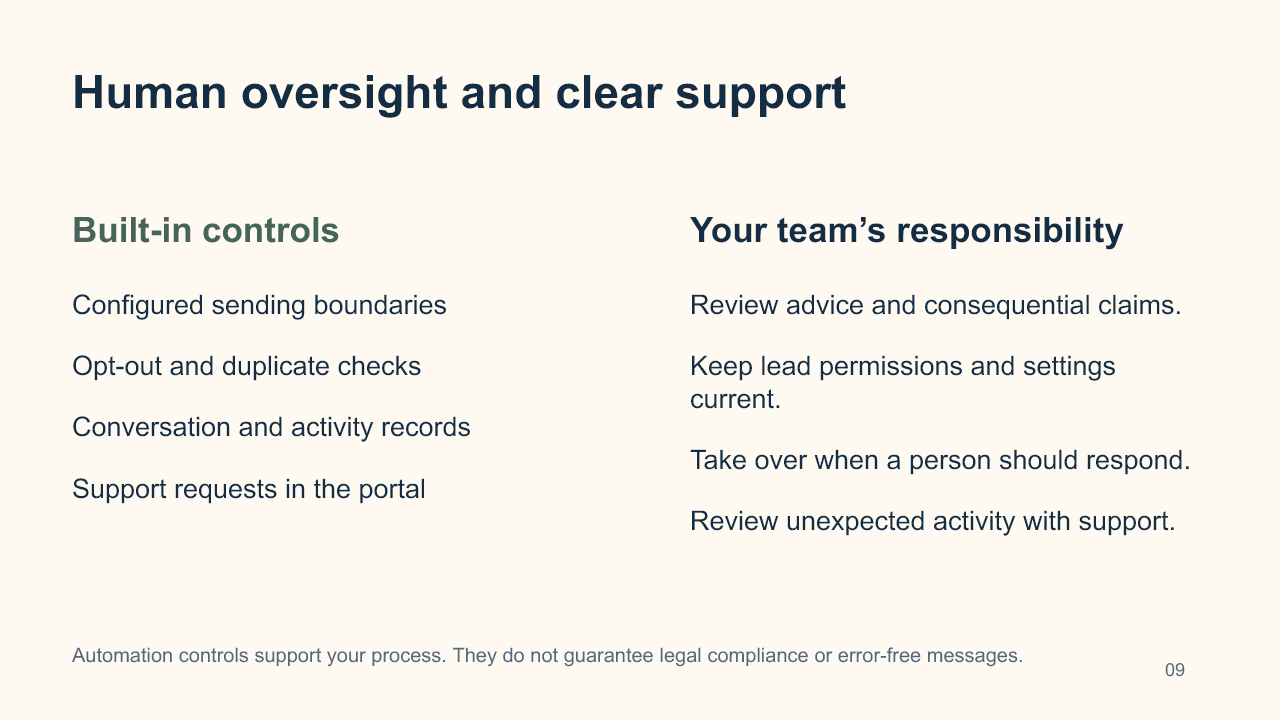
9. Human oversight and clear support
Read slide text
Human oversight and clear support
Built-in controls
Configured sending boundaries
Opt-out and duplicate checks
Conversation and activity records
Support requests in the portal
Your team’s responsibility
Review advice and consequential claims.
Keep lead permissions and settings current.
Take over when a person should respond.
Review unexpected activity with support.
Automation controls support your process. They do not guarantee legal compliance or error-free messages.
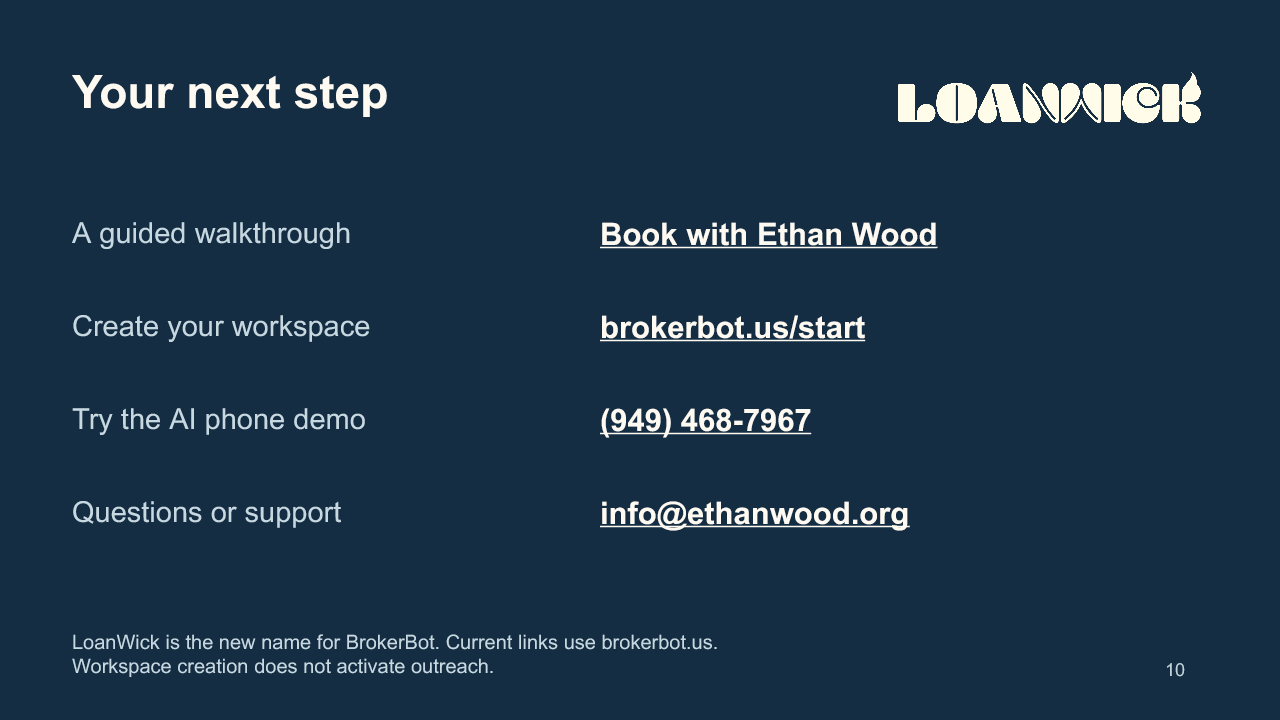
10. Your next step
Read slide text
Your next step
A guided walkthrough
Book with Ethan Wood
Create your workspace
brokerbot.us/start
Try the AI phone demo
(949) 468-7967
Questions or support
info@ethanwood.org
LoanWick is the new name for BrokerBot. Current links use brokerbot.us.
Workspace creation does not activate outreach.
The example conversation is illustrative. Availability depends on your setup and account tier. Shared safety controls and provider failover still apply.
Use fictional details in the AI demo. Carrier charges may apply. Creating a workspace does not start outreach.
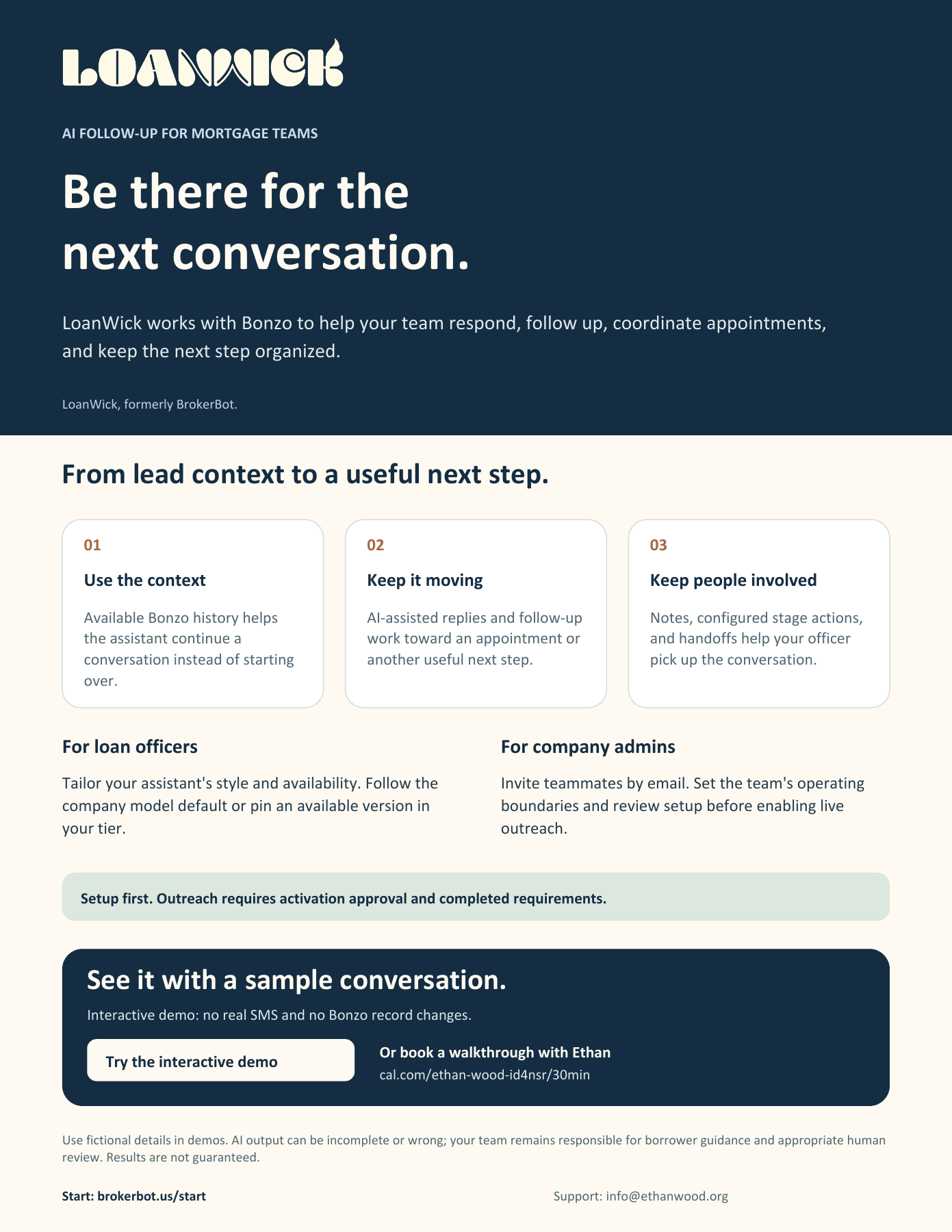
A one-page introduction
Something simple to share.
A printable overview of how LoanWick helps with Bonzo conversations, follow-up and appointment coordination, while keeping your team in control.
One page · PDF · no email or account required.
Getting started, made clearer.
Pick the guide that matches your role. Setup and activation approval remain separate steps.
LoanWick is the new name for BrokerBot. Existing brokerbot.us links keep working. AI output needs appropriate human review; results and compliance are not guaranteed.